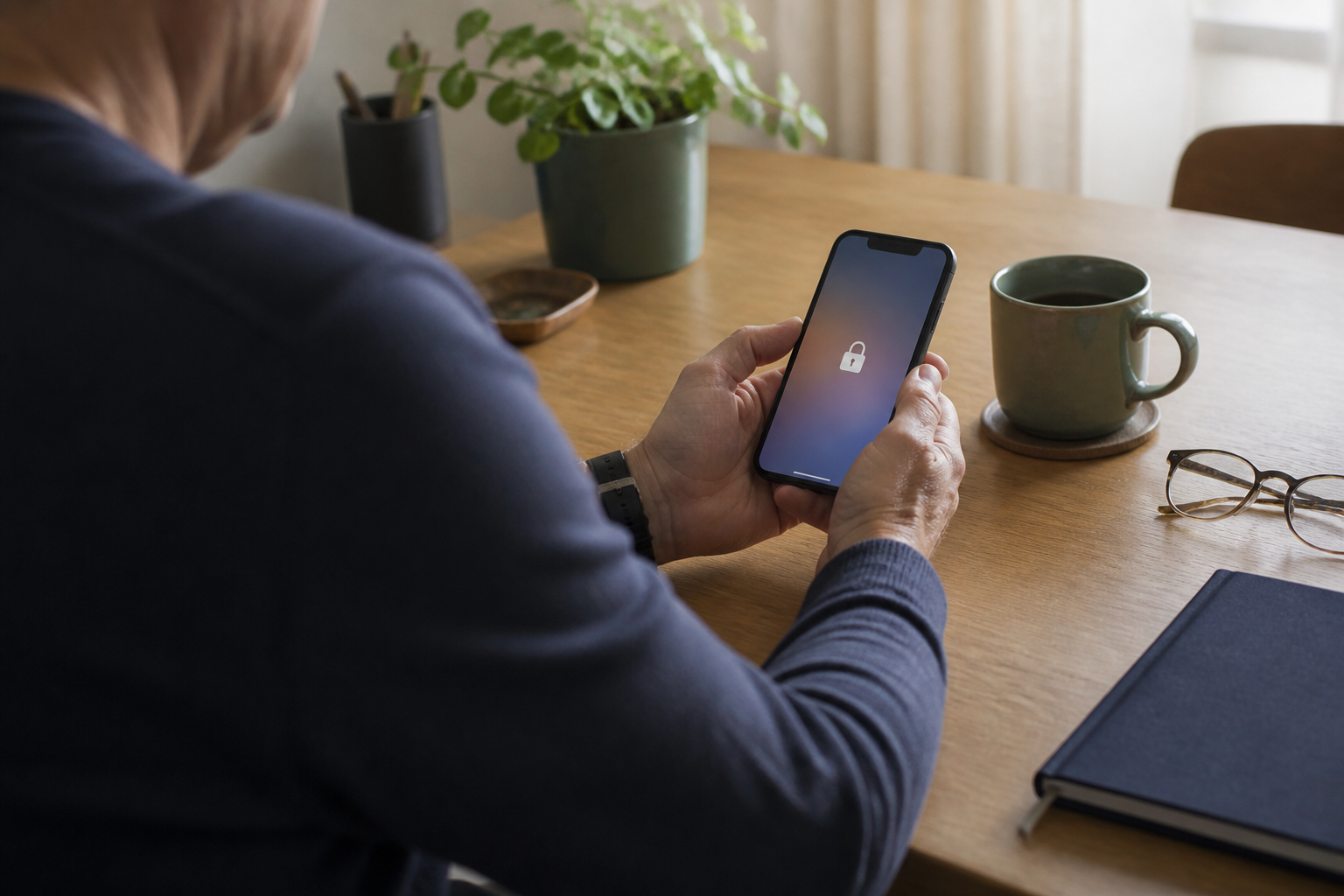
I did not decide to “switch to passkeys.”
An app or website asked whether I wanted to use one. My iPhone made it look routine, so I pressed Continue or OK and moved on. Later, I realized I had passkeys stored on my phone without really knowing what they were.
That is probably the most successful—and confusing—part of passkeys. They can make signing in easier before the person using them understands what changed.
So, what is a passkey? Is Face ID the passkey? Do I still need the old password? And what happens to my passkeys when I replace or lose my iPhone?
- Passkey
- A sign-in credential made from a pair of digital keys. It can replace typing a password on a supported account.
- Public key
- The half stored by the website or app. It can verify a sign-in but cannot be used by itself to impersonate you.
- Private key
- The secret half kept by your phone, computer, security key or credential manager. It is not sent to the website during sign-in.
- Credential manager
- The service that stores and synchronizes passkeys, such as Apple Passwords with iCloud Keychain, Google Password Manager or a compatible third-party manager.
The short answer: Face ID is not the passkey
Face ID is the guard at the door. The passkey is the key behind the door.
When I sign in, the website sends my device a fresh challenge. My iPhone uses the private key to prove that it holds the right credential. Face ID, Touch ID or the device passcode authorizes the phone to use that key. The private key itself is not revealed to the website.
The secret does not travel to the website
What happens when I use a passkey?
Face ID is not the passkey. It is one way the device verifies that you may use the passkey.
This design blocks a common kind of phishing. A fake site cannot simply collect the passkey the way it can collect a password that I type. The passkey is created for a particular website or app, so it does not work as a reusable secret on a look-alike domain.
That is why security organizations generally describe passkeys as safer than passwords. It does not make the whole account invulnerable. A compromised device, weak account recovery, malicious software or a mistake by the service can still create trouble.
Where did my iPhone save it?
On a current iPhone, open the Passwords app, unlock it, and choose Passkeys or search for the website or app. Apple says passkeys created on the iPhone are stored in the Passwords app and, when iCloud Keychain is enabled, synchronized across devices signed in to the same Apple Account. Apple’s current instructions show where to view and delete them.
That means the passkey is not usually trapped in one physical phone. Apple designed iCloud Keychain to synchronize and recover passkeys without exposing them to Apple. But the safety of that convenience now depends heavily on protecting and recovering the Apple Account.
This is the part I had not considered when I pressed OK. I was not only choosing a faster sign-in. I was choosing where the new credential would live.
What happens when I get a new phone?
If the new device is another Apple device signed in to the same Apple Account with Passwords & Keychain enabled, synchronized passkeys should become available there. Apple also allows an iPhone to sign in on another device by scanning a QR code, so a Windows computer does not necessarily need to hold the passkey itself.
Cross-platform use is improving, but it can still feel uneven. A passkey stored with Apple, one stored with Google and one stored in a third-party password manager may follow different synchronization and recovery paths.
Where the credential lives changes the path
Three common ways to reach another device
A passkey can be synchronized, device-bound or stored on a security key. Check the account and credential manager instead of assuming every passkey moves the same way.
The UK National Cyber Security Centre recommends thinking of the storage service as a credential manager, because it now manages more than passwords. That choice matters if I regularly move between iPhone, Windows and Android. Its consumer guidance explains synchronization and device loss in plain language.
What if I lose my iPhone—or cannot enter iCloud?
Losing the phone is usually not the same as losing every synchronized passkey. If I can recover my Apple Account and sign in on a replacement device, iCloud Keychain is designed to restore them.
The harder problem is losing the phone and being unable to recover the Apple Account. Apple says keychain recovery can require the Apple Account password and verification through a trusted phone number, and it offers an optional account-recovery contact. Apple’s passkey security page describes those recovery protections.
The exact fallback also depends on the website. Some services keep the old password, email code or another login method. Others can trap users in what one reader called a “doom-loop,” repeatedly asking for a passkey that is no longer available. That is a service-recovery problem, not proof that passkey cryptography failed.
Do I still need the old password?
Sometimes yes.
Apple allows a passkey and password to exist for the same account. Reddit, for example, says its passkey feature does not create a passkey-only account; the original email/password or phone-based method remains available. Other services may eventually let a passkey replace the password completely.
So I should not delete an old password merely because a passkey appeared. First I need to check the account’s own security page:
- Is the passkey an additional sign-in method or the only one?
- Does the recovery email still work?
- Is the trusted phone number current?
- Are backup codes available?
- Can I add a second passkey from another device or manager?
My five-minute passkey recovery check
Before losing or replacing the iPhone, I can check five things:
- Open Passwords → Passkeys. Which accounts are listed?
- Check iCloud Keychain. Is Passwords & Keychain synchronization on?
- Review Apple Account recovery. Is the trusted number current, and have I chosen a recovery contact if I want one?
- Open the most important accounts. What other sign-in or recovery methods do they actually offer?
- Test one cross-device sign-in. Can I use the iPhone passkey on my Windows computer through the offered QR-code flow?
The checklist cannot guarantee account recovery. It does reveal whether I have been relying on a phone, an Apple Account or a fallback method I have never tested.
Passkeys are easier partly because the hard work moved out of sight. That is an improvement—until I mistake invisible for automatic. The next time my iPhone asks me to create one, I will still probably press Continue. Now I will also know where the key went and how I expect to get it back.
Leave a Reply